
Quick Answer
How do I add exercise animations to a React Native app?
Use MoveKit's loopable MP4 clips with expo-video (or react-native-video). Each clip is a high-resolution H.264 MP4 that loops. Load from your CDN, set player.loop and player.muted, and you have professional 3D exercise demonstrations in about 15 minutes.
- •expo-video or react-native-video for playback
- •MoveKit clips are silent, loopable MP4s - no audio session conflicts
- •Use public previews for grids and paid high-resolution MP4 files for detail views
- •Structured metadata helps power filters, muscle maps, and exercise detail screens
- •Commercial license included - $4.99/clip or buyer libraries from $149 to $299
Every fitness app needs exercise demonstrations. But finding consistent, professional-quality animations is surprisingly hard. Most developers end up with a mishmash of stock GIFs, inconsistent art styles, or expensive custom work that takes weeks to produce.
This tutorial shows you how to add clean, loopable 3D exercise animations to a React Native app using MoveKit clips and expo-video. By the end, you will have a polished exercise browser with professional animations playing in your app.
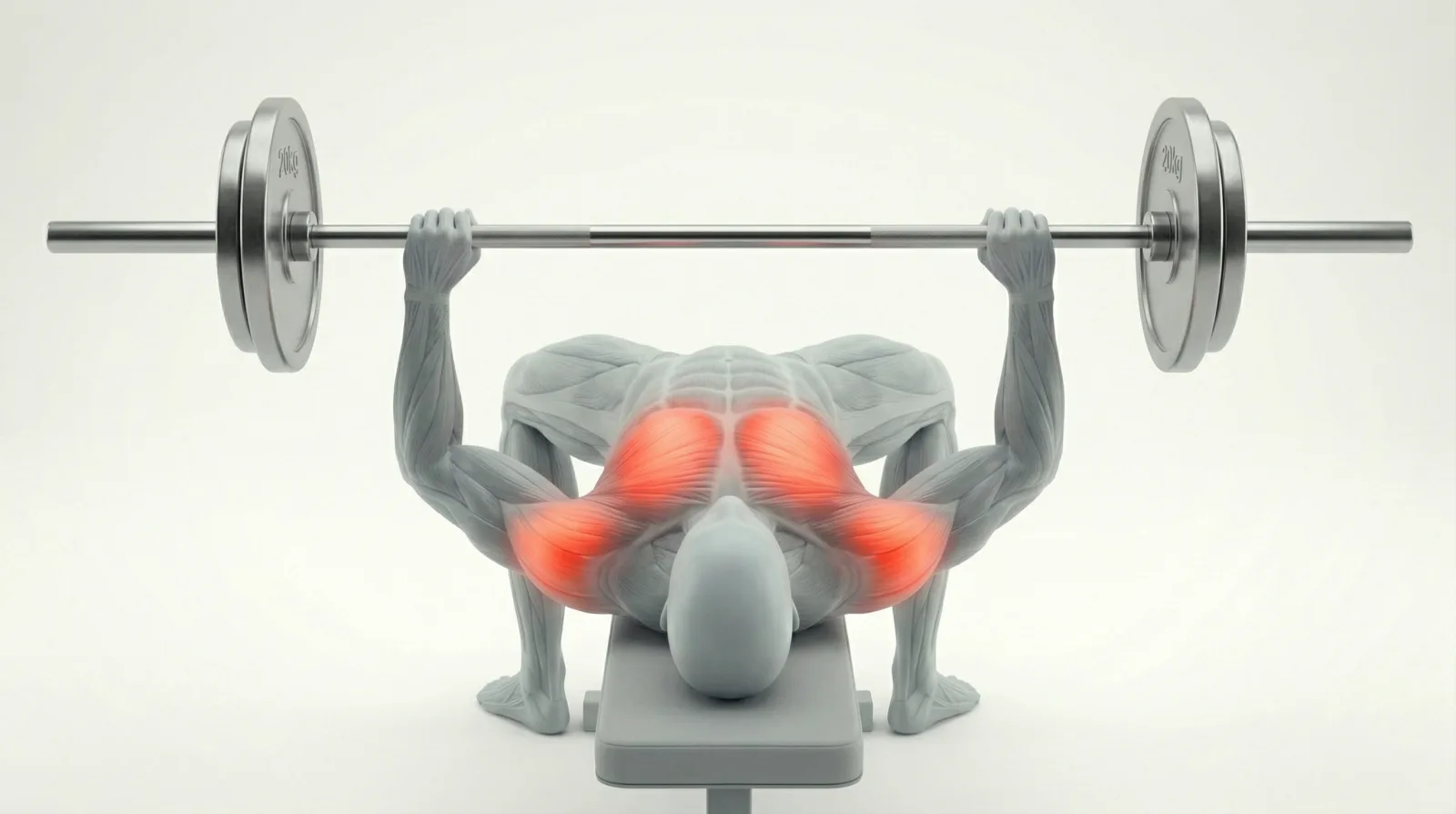
Barbell Bench Press
What We Are Building
A simple exercise browser that:
- Loads 3D exercise animations from a CDN
- Plays them in loops
- Displays muscle group info and difficulty
- Lets users browse exercises in a filterable grid
Prerequisites
- React Native project with Expo SDK 55 or newer - the samples here target Expo SDK 57
- Basic React Native knowledge
- A few MoveKit exercise clips - grab the free sample pack to follow along
Step 1: Install expo-video
We use expo-video for video playback. It handles looping, muting, and background behavior out of the box.
npx expo install expo-videoIf you are following an older tutorial that uses expo-av, that package is no longer part of the Expo SDK. It was deprecated in SDK 54 and removed in SDK 55, so npx expo install expo-av no longer gives you a working video component on a current Expo project. expo-video is the replacement, and it splits the old single Video component into a VideoPlayer object and a VideoView that renders it.
If you prefer bare React Native without Expo, react-native-video (v6+) works too. The API is slightly different but the concepts are identical.
Step 2: Understand the File Structure
Each MoveKit exercise comes as an MP4 optimized for app use:
- Format: H.264 MP4 - universal iOS and Android compatibility
- Resolution: high-resolution widescreen MP4 - paid files are around 1936x1072, public previews are 650x360, both sharp on mobile without bloating your bundle
- Framerate: 30fps for almost the whole library, with a few clips at 24fps
- Loopable: repeats when played in a loop
- Silent: no audio track - will not interfere with the user's music
Exercise Data Shape
Each exercise has metadata you will want in your app:
interface Exercise { slug: string; // e.g. "barbell-bench-press" name: string; // e.g. "Barbell Bench Press" primaryMuscles: string[]; // e.g. ["Chest"] secondaryMuscles: string[]; equipment: string[]; // e.g. ["Barbell"] difficulty: "beginner" | "intermediate" | "advanced"; durationSeconds: number; // animation loop length videoUrl: string; // CDN URL to the MP4 posterUrl: string; // first-frame thumbnail (WebP)}Step 3: Build the Exercise Video Player
Here is a reusable component that plays a MoveKit animation in a loop:
import React, { useState } from "react";import { View, Image, StyleSheet } from "react-native";import { useVideoPlayer, VideoView } from "expo-video";
interface ExerciseVideoProps {  videoUrl: string;  posterUrl?: string;  style?: object;}
export function ExerciseVideo({  videoUrl, posterUrl, style,}: ExerciseVideoProps) {  const [showPoster, setShowPoster] = useState(!!posterUrl);
  const player = useVideoPlayer({ uri: videoUrl }, (p) => {    p.loop = true;    p.muted = true;    p.play();  });
  return (    <View style={[styles.container, style]}>      <VideoView        player={player}        style={styles.video}        contentFit="contain"        nativeControls={false}        onFirstFrameRender={() => setShowPoster(false)}      />      {showPoster && posterUrl ? (        <Image          source={{ uri: posterUrl }}          style={styles.poster}          resizeMode="contain"        />      ) : null}    </View>  );}
const styles = StyleSheet.create({  container: {    width: "100%",    // MoveKit clips are widescreen (around 1936x1072), not square    aspectRatio: 16 / 9,    borderRadius: 16,    overflow: "hidden",    // clips sit on a near-white studio background    backgroundColor: "#f4f4f5",  },  video: { width: "100%", height: "100%" },  poster: {    position: "absolute",    top: 0, left: 0, right: 0, bottom: 0,  },});
Key details:
useVideoPlayer(source, setup)- creates the player and runs your setup function once. The player it returns is released automatically when the component unmounts, so there is nothing to clean up by hand.player.loop- MoveKit clips loop. This makes it automatic.player.muted- clips have no audio, but setting this avoids iOS audio session conflicts.player.play()- starts playback as soon as the clip is ready.nativeControls={false}- this one matters. Unlike the oldexpo-avcomponent,VideoViewshows native playback controls by default. Leave it out and every exercise card gets a scrubber and a play button over it.contentFit- replaces the oldresizeModeprop."contain"is the default, and it is what you want so the movement is never cropped.- Poster overlay -
expo-videohas nousePosterprop. Draw the thumbnail yourself as an absolutely positionedImageand drop it whenonFirstFrameRenderfires.
One platform note, since Expo projects often ship a web build too. Testing this on expo-video 57.0.2, player.play() inside the useVideoPlayer setup function was a no-op on web, while loop and muted set in that same callback applied normally. If you see the same thing, call play() after mount instead:
// only needed if you also ship this screen on web// drop p.play() from the setup callback above, then:const player = useVideoPlayer({ uri: videoUrl }, (p) => {  p.loop = true;  p.muted = true;});
React.useEffect(() => {  player.play();}, [player]);
Step 4: Create an Exercise Card
Wrap the video player in a card that shows exercise metadata:
import React from "react";import { View, Text, StyleSheet, Pressable } from "react-native";import { ExerciseVideo } from "./ExerciseVideo";
const difficultyColors = {  beginner: "#10b981",  intermediate: "#f59e0b",  advanced: "#ef4444",};
export interface ExerciseCardItem {  slug: string;  name: string;  primaryMuscles: string[];  equipment: string[];  difficulty: keyof typeof difficultyColors;  videoUrl: string;  posterUrl?: string;}
interface ExerciseCardProps {  exercise: ExerciseCardItem;  onPress?: (exercise: ExerciseCardItem) => void;}
export function ExerciseCard({ exercise, onPress }: ExerciseCardProps) {  return (    <Pressable style={styles.card} onPress={() => onPress?.(exercise)}>      <ExerciseVideo        videoUrl={exercise.videoUrl}        posterUrl={exercise.posterUrl}      />      <View style={styles.info}>        <View style={styles.badges}>          <View style={styles.muscleBadge}>            <Text style={styles.badgeText}>              {exercise.primaryMuscles[0]}            </Text>          </View>          <View style={[            styles.difficultyBadge,            { backgroundColor: difficultyColors[exercise.difficulty] + "20" },          ]}>            <Text style={[              styles.badgeText,              { color: difficultyColors[exercise.difficulty] },            ]}>              {exercise.difficulty}            </Text>          </View>        </View>        <Text style={styles.name}>{exercise.name}</Text>        <Text style={styles.equipment}>{exercise.equipment[0]}</Text>      </View>    </Pressable>  );}
const styles = StyleSheet.create({  card: {    borderRadius: 16,    backgroundColor: "#111",    overflow: "hidden",    borderWidth: 1,    borderColor: "#222",  },  info: { padding: 12, gap: 6 },  badges: { flexDirection: "row", gap: 6 },  muscleBadge: {    backgroundColor: "#1a1a2e",    paddingHorizontal: 8,    paddingVertical: 3,    borderRadius: 6,  },  difficultyBadge: {    paddingHorizontal: 8,    paddingVertical: 3,    borderRadius: 6,  },  badgeText: {    fontSize: 11,    fontWeight: "600",    color: "#a0a0b0",    textTransform: "capitalize",  },  name: { fontSize: 15, fontWeight: "600", color: "#fff" },  equipment: { fontSize: 13, color: "#666" },});
Step 5: Build the Exercise Picker Grid
Create a scrollable, filterable grid of exercises:
import React, { useState } from "react";import {  View, Text, FlatList, StyleSheet,  SafeAreaView, ScrollView, Pressable,} from "react-native";import { ExerciseCard, type ExerciseCardItem } from "../components/ExerciseCard";
// Replace with your own CDN URLs after purchasingconst EXERCISES: ExerciseCardItem[] = [  {    slug: "barbell-bench-press",    name: "Barbell Bench Press",    primaryMuscles: ["Chest"],    equipment: ["Barbell"],    difficulty: "intermediate",    videoUrl: "YOUR_CDN/barbell-bench-press/video-preview.mp4",    posterUrl: "YOUR_CDN/barbell-bench-press/poster-thumb.webp",  },  {    slug: "dumbbell-curl",    name: "Dumbbell Curl",    primaryMuscles: ["Biceps"],    equipment: ["Dumbbell"],    difficulty: "beginner",    videoUrl: "YOUR_CDN/dumbbell-curl/video-preview.mp4",    posterUrl: "YOUR_CDN/dumbbell-curl/poster-thumb.webp",  },  // ... add all purchased exercises];
const FILTERS = ["All", "Chest", "Back", "Biceps", "Quadriceps", "Core"];
export function ExercisePickerScreen() {  const [muscle, setMuscle] = useState("All");  const filtered = muscle === "All"    ? EXERCISES    : EXERCISES.filter((e) => e.primaryMuscles.includes(muscle));
  return (    <SafeAreaView style={styles.container}>      <Text style={styles.title}>Exercises</Text>      <ScrollView        horizontal        showsHorizontalScrollIndicator={false}        contentContainerStyle={styles.filters}      >        {FILTERS.map((f) => (          <Pressable            key={f}            style={[styles.chip, muscle === f && styles.chipActive]}            onPress={() => setMuscle(f)}          >            <Text style={[              styles.chipText,              muscle === f && styles.chipTextActive,            ]}>{f}</Text>          </Pressable>        ))}      </ScrollView>      <FlatList        data={filtered}        keyExtractor={(item) => item.slug}        numColumns={2}        columnWrapperStyle={styles.row}        contentContainerStyle={styles.grid}        renderItem={({ item }) => (          <View style={styles.gridItem}>            <ExerciseCard exercise={item} />          </View>        )}      />    </SafeAreaView>  );}
const styles = StyleSheet.create({  container: { flex: 1, backgroundColor: "#000" },  title: {    fontSize: 28, fontWeight: "700", color: "#fff",    paddingHorizontal: 16, paddingTop: 16, paddingBottom: 8,  },  filters: { paddingHorizontal: 16, paddingVertical: 12, gap: 8 },  chip: {    paddingHorizontal: 14, paddingVertical: 7, borderRadius: 20,    backgroundColor: "#1a1a1a", borderWidth: 1, borderColor: "#333",  },  chipActive: { backgroundColor: "#fff", borderColor: "#fff" },  chipText: { fontSize: 13, fontWeight: "500", color: "#999" },  chipTextActive: { color: "#000" },  grid: { padding: 12 },  row: { gap: 12, marginBottom: 12 },  gridItem: { flex: 1 },});
Step 6: Optimize for Performance
Use Previews for Grids
Use the right asset for each UI surface:
- Public previews: lightweight enough for list and grid thumbnails
- Paid MP4 files: high-resolution assets for detail views and product playback
Use previews in grids and switch to the paid MP4 file when a user taps into the detail view.
Cache Videos Locally
For offline support, download the MP4s at install time and serve from the local filesystem:
import { Directory, File, Paths } from "expo-file-system";
async function cacheExerciseVideo(slug: string, remoteUrl: string) {  const dir = new Directory(Paths.document, "exercises");  dir.create({ intermediates: true, idempotent: true });
  const file = new File(dir, `${slug}.mp4`);  if (file.exists) return file.uri;
  const downloaded = await File.downloadFileAsync(remoteUrl, file);  return downloaded.uri;}
Note that expo-file-system changed at the same time as the video API. The old FileSystem.documentDirectory string plus getInfoAsync / downloadAsync helpers have been replaced by the File, Directory, and Paths classes shown above. If you need the old calls while you migrate, they still ship at expo-file-system/legacy.
Lazy Load in Long Lists
In lists with 20+ exercises, avoid autoplaying every video. Every mounted ExerciseVideo holds its ownVideoPlayer, so a long grid means a lot of live players. Use FlatList's onViewableItemsChanged callback to track which items are visible, and call player.pause() on the ones that scroll out of view.
Step 7: Muscle Metadata and Supporting Artifacts
MoveKit includes structured metadata for muscles, equipment, difficulty, movement pattern, tags, and file references. Use that metadata as the reliable source for filters and exercise detail screens, with supporting visual artifacts where available.
Barbell Bent Over Row
This is perfect for educational fitness apps where users want to understand which muscles each exercise targets. You can build muscle maps and detail panels from metadata without manually tagging every clip.
Styling Tips
- Give clips a light container. The MoveKit mannequin is grey on a light, near-white studio background, so clips drop straight into light surfaces. On a dark theme, put each clip in its own light card instead of letting the frame sit on black.
- Widescreen, not square. Clips are widescreen and close to 16:9. Most paid files are 1936x1072 (roughly 1.81:1), but the exact frame varies slightly across the catalogue, so do not hardcode a layout to one clip. Give the container
aspectRatio: 16 / 9and keepcontentFitoncontain: that absorbs the variation and never crops the movement. - No controls needed. These are short, looping animations - not long-form video. Hide playback controls and let them autoplay silently.
- Poster images prevent flash. Always use the poster thumbnail as a placeholder while the video loads. MoveKit provides WebP thumbnails specifically for this.
What You Get with MoveKit
- 400+ exercises across all major muscle groups (chest, back, shoulders, arms, legs, core)
- Consistent 3D mannequin - same character and art style across every animation
- Structured metadata - muscles, equipment, movement patterns, difficulty, tags, and file references
- Loopable MP4s - H.264, high-resolution, almost all at 30fps
- Commercial license included - use in your published app, no extra fees
- Individual clips at $4.99 or the 582-exercise Complete Pack at $299
- Free sample pack - 2 exercises to test before you buy
Next Steps
- Grab the free sample pack to test with real clips
- Browse the exercise library to see all 400+ exercises
- Check the licensing page for commercial use details
If you are building a fitness app and tired of inconsistent stock animations, MoveKit saves you weeks of sourcing and gives your app a professional look from day one.
FAQ
Does MoveKit work with React Native CLI (no Expo)?
Yes. Use react-native-video (v6+) instead of expo-video. The component API differs slightly - it is a single component with a repeat prop instead of player.loop, and a muted prop instead of player.muted - but the MoveKit MP4 files work identically.
What about Flutter or SwiftUI?
MoveKit clips are standard H.264 MP4 files. They work in any platform that supports video playback. In Flutter, use video_player or chewie. In SwiftUI, use AVPlayer with AVPlayerLooper. The integration pattern is the same: load the URL, set to loop, mute, and autoplay.
How large are the files?
File sizes vary by exercise length and export. Use lightweight public previews for list views and paid high-resolution MP4 files for detail screens. Pack download buttons show the current archive sizes.
Can I host the files myself?
Yes. After purchase, you download the MP4 files and can host them anywhere - your own CDN, S3, Firebase Storage, or bundle them directly into your app. There is no lock-in to MoveKit's CDN.
Is the commercial license really included?
Yes. Every purchase includes a commercial license. You can use the animations in published iOS, Android, and web apps, in online courses, and in social media content. The only restriction is you cannot resell the raw animation files or include them in a competing marketplace. See the licensing page for full details.